

QR Code Status Tracker turns an existing quality-control sheet into a shared workflow. Each row can move through inspection, rework, approval, and release while preserving a clear scan history.
Install QR Code Status Tracker
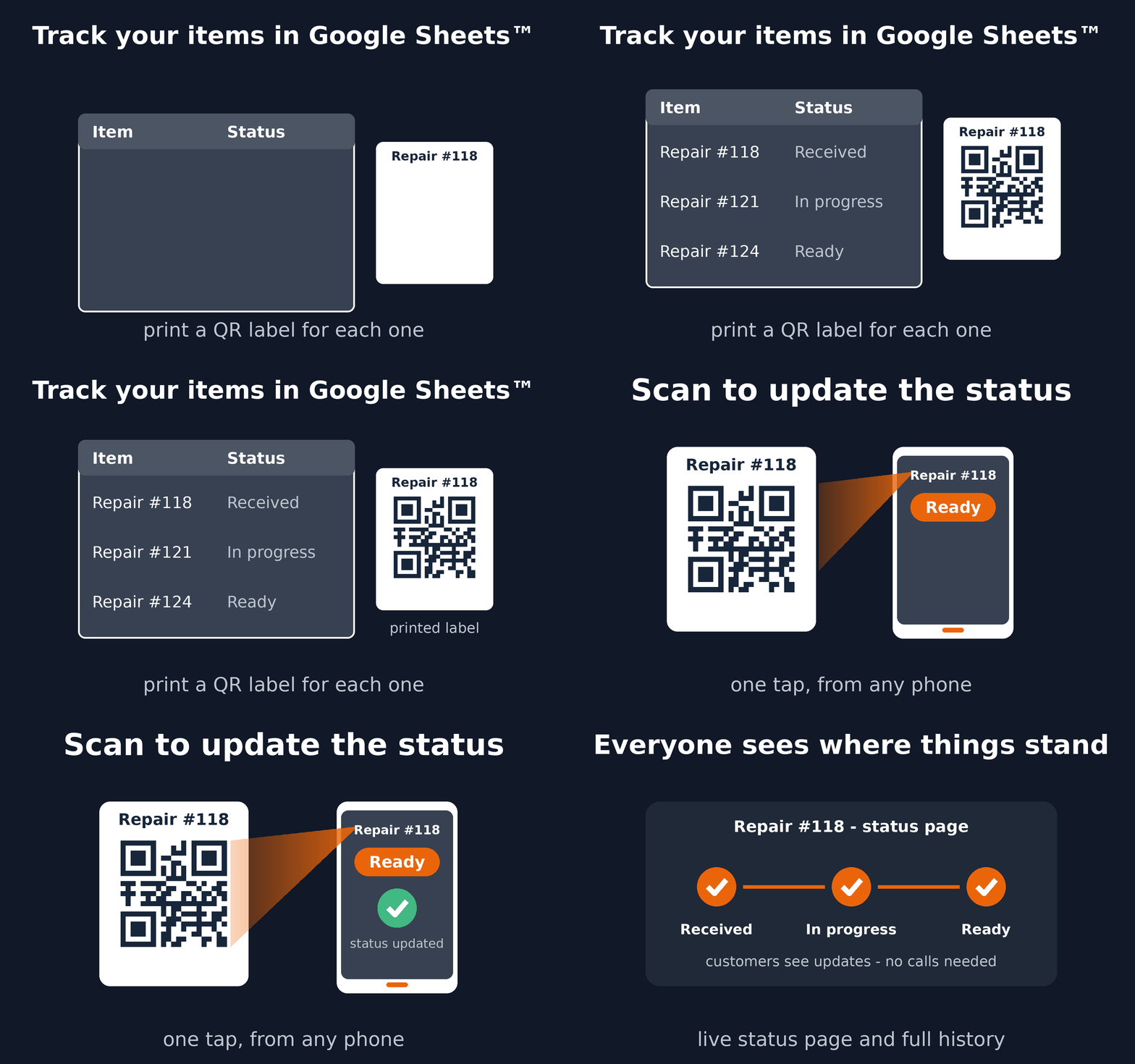
See the complete workflow
A practical QA workflow
- Keep one sample, batch, or inspected item per spreadsheet row.
- Choose steps such as Received, Under inspection, Rework, and Approved.
- Use an existing sample or batch code, or generate printable QR labels.
- Scan the item to record each move and an optional note.
- Review the current status and previous decisions directly from the sheet.
When to use a custom Trak setup
Choose a custom Trak setup when QA requires structured measurements, scoring, per-step forms, GPS, signatures, dashboards, or integrations. For a QA list moving through named statuses, start with QR Code Status Tracker.
Read the setup guide or install the add-on from Google Workspace Marketplace™.
Google Sheets™ and Google Workspace Marketplace™ are trademarks of Google LLC.