
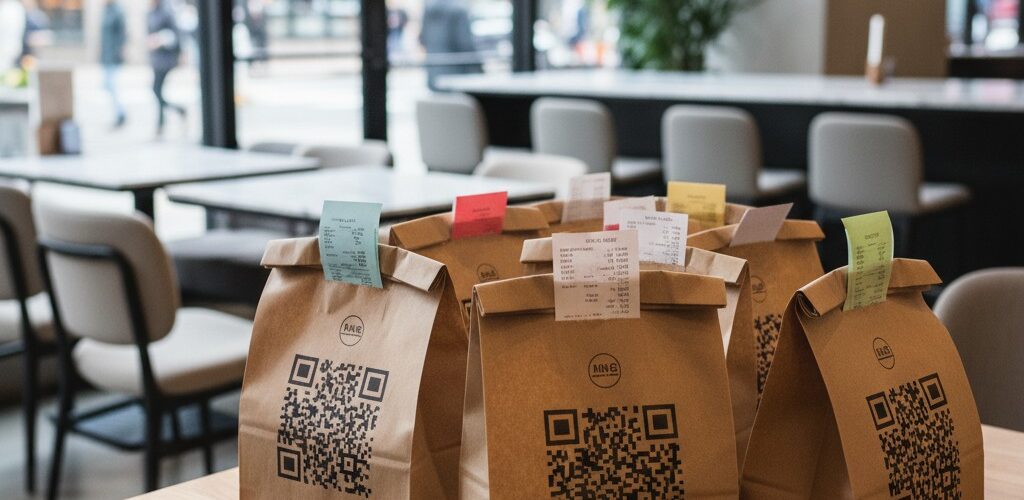
QR Code Status Tracker connects the order list you already keep in Google Sheets™ to the physical work of validating, picking, packing, and dispatching each order.
Install QR Code Status Tracker
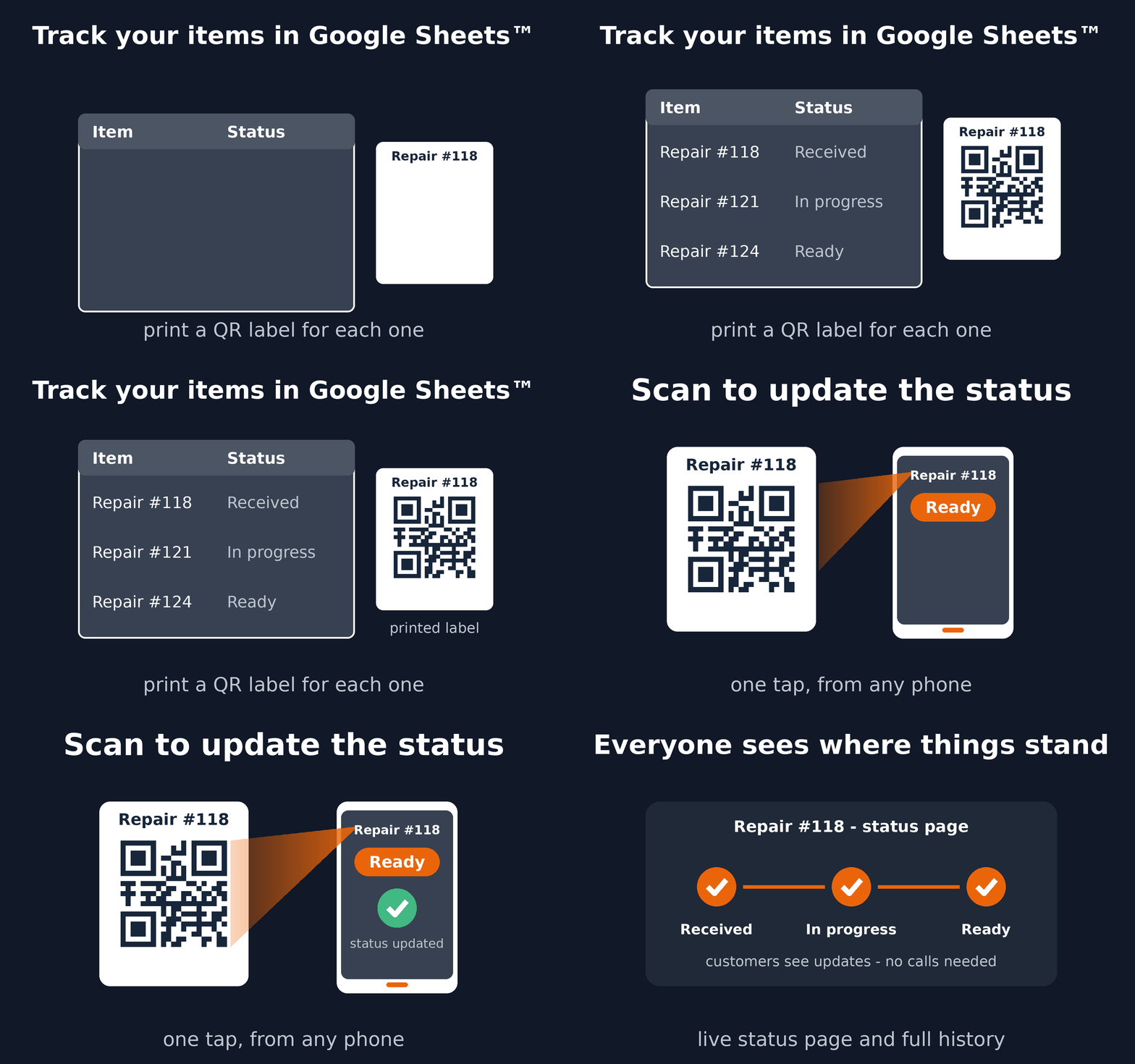
See the complete workflow
A practical order workflow
- Keep one order or fulfillment item per spreadsheet row.
- Choose steps such as Validated, Picking, Packed, and Dispatched.
- Use your existing order number, or let the add-on create printable QR labels.
- Scan the order at each handoff to update its status and history.
- Optionally share a private progress link with the customer.
Why this works better than manual updates
- Staff stay in the familiar Google Sheets™ spreadsheet instead of learning another back office.
- Scanning matches the physical order to the correct row and reduces update errors.
- Everyone sees the current stage and the previous moves.
- Customers can follow progress without gaining access to the spreadsheet.
When to use a custom Trak setup
Choose a custom Trak setup when fulfillment needs structured per-step forms, GPS, signatures, dynamic locations, or integrations. For orders moving through named statuses, start with QR Code Status Tracker.
Read the setup guide or install the add-on from Google Workspace Marketplace™.
Google Sheets™ and Google Workspace Marketplace™ are trademarks of Google LLC.