
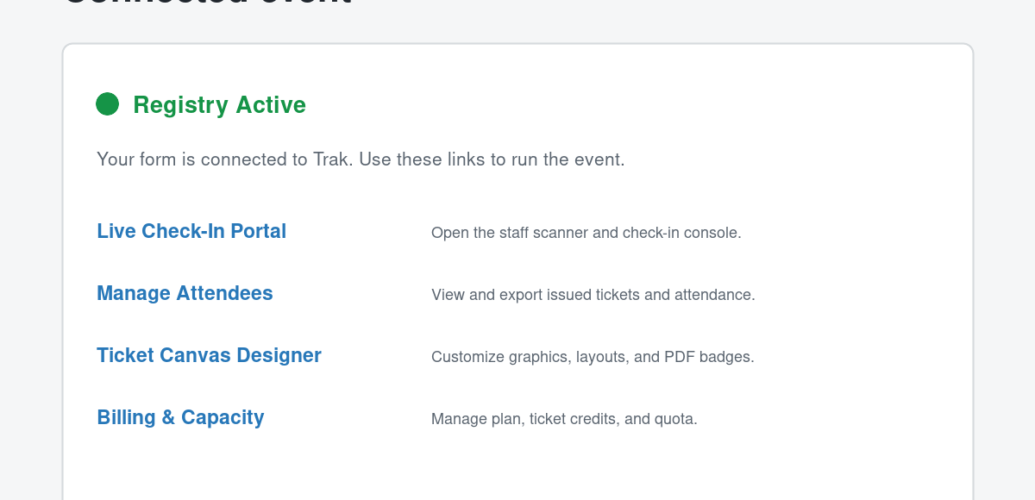
Now published in the WordPress.org Plugin Directory: install Darkaa QR Tickets Check-In for free and connect your WordPress forms to Trak Events.
Darkaa QR Tickets Check-In connects popular WordPress contact form plugins to Trak Events. Turn form submissions into QR-coded PDF tickets, then use the generated check-in and attendee-report links to run your event.
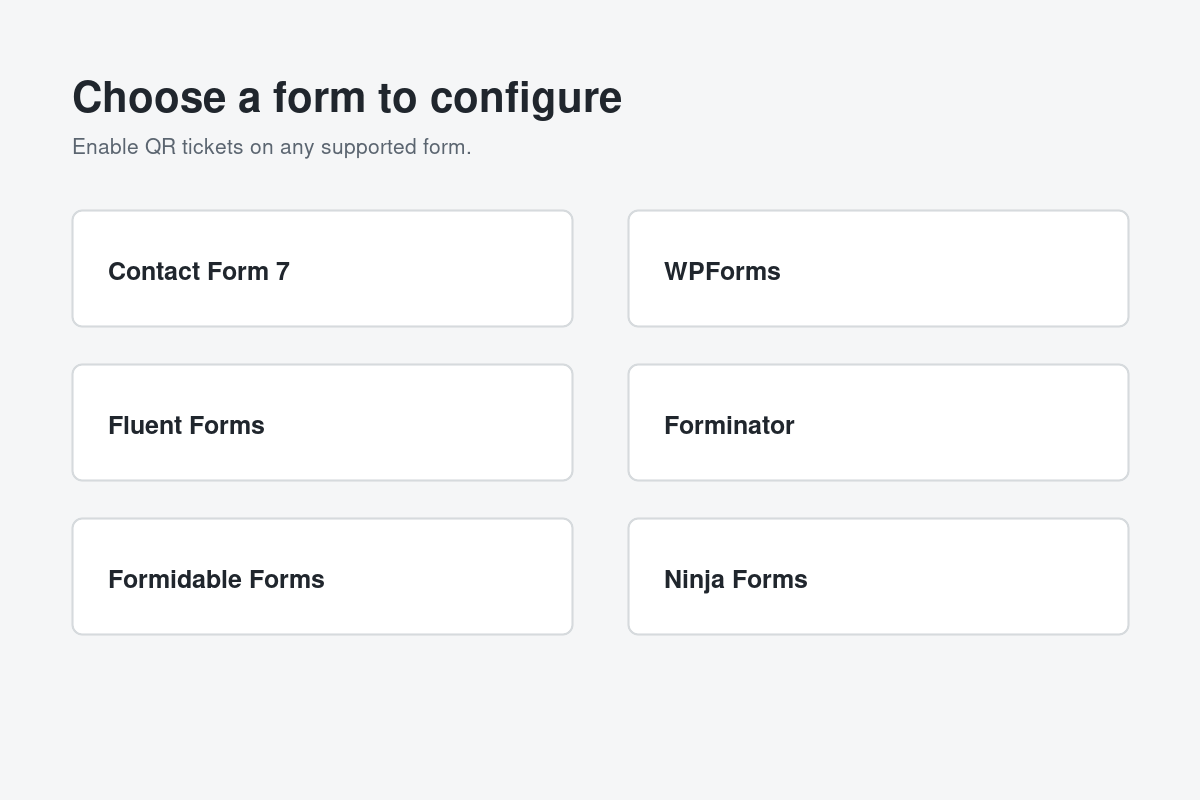
The plugin supports Contact Form 7, WPForms, Fluent Forms, Forminator, Formidable Forms, and Ninja Forms. Each enabled form becomes its own Trak event.
What the plugin does
- Creates a Trak event from a supported WordPress form.
- Keeps the Trak event fields synchronized when the form changes.
- Creates a QR ticket for each enabled form submission.
- Can attach the generated ticket PDF to the form plugin’s notification email.
- Provides links to ticket design, check-in, attendee reports, and capacity management.
How to get started
- Install and activate one of the supported form plugins.
- Install and activate Darkaa QR Tickets Check-In.
- Open QR Tickets in the WordPress admin sidebar.
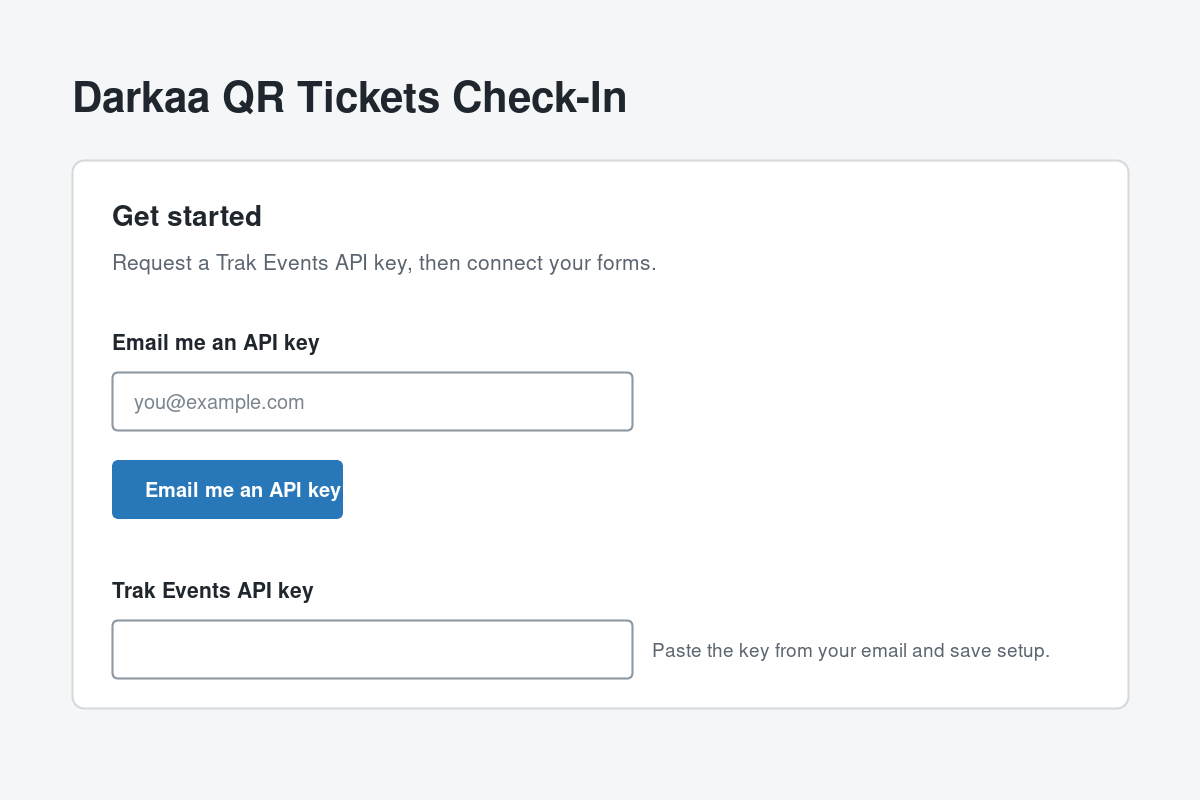
- Request a Trak Events API key from the setup page, then save it.
- Choose a form, click Configure, and enable electronic ticketing.
- Use the generated Trak links to design tickets, monitor registrations, and check in attendees.
Configure a form
After the API key is saved, the Form List shows every available form from the supported plugins. Open a form to select the email field, choose the ticket display caption format, and enable PDF attachments when needed.
What attendees receive
When a visitor submits an enabled form, the configured form values are sent to Trak Events. Trak creates the attendee record and QR ticket. If PDF attachments are enabled, the plugin adds the generated PDF to the form plugin’s normal notification or transactional email.
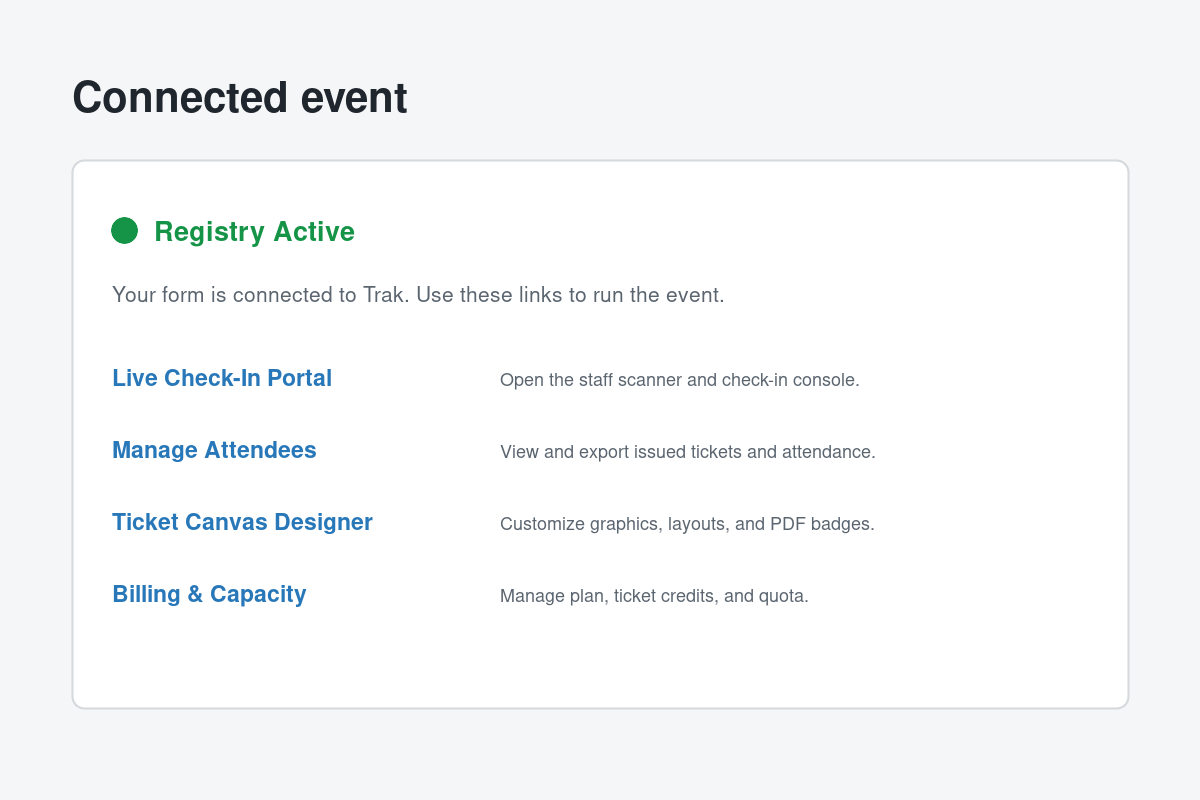
The connected project page provides links for the live check-in portal, attendee reports, ticket design, and capacity management.
Hosted service and data handling
This plugin uses the hosted Trak Events service at backend.trak.codes. The plugin sends the form setup information needed to create and update the Trak event. When an enabled form is submitted, it sends the configured submission values to Trak to create the ticket and check-in record.
Trak’s service terms are available at qr-code-ticket.com/terms, and its privacy policy is available at qr-code-ticket.com/privacy. Site owners should explain this data flow in their own privacy policy.
Frequently asked questions
Do I need a Trak account?
Yes. The plugin requires a Trak Events API key before it can create ticket projects. The QR Tickets setup page can request one by email.
Can I use more than one form plugin?
Yes. The plugin detects the supported form plugins that are active on your site, and each enabled form gets its own Trak event.
What happens when I change form fields?
When you save the QR Tickets configuration, the plugin synchronizes the current field list with the existing Trak event. Future tickets use the updated fields.
Where can I find pricing and capacity information?
Open the Trak QR ticket add-ons pricing page for current plan and capacity information.
Support
For setup help, a review test key, or questions about the hosted service, email contact@darkaa.com.