
Last updated: July 16, 2026
AI Response Feedback for Forms™ checks Google Forms™ responses against instructions you write in plain language. You see how the AI works before setup, review real feedback before anything is sent, and turn on automatic delivery only when the results are consistently right.
What it does
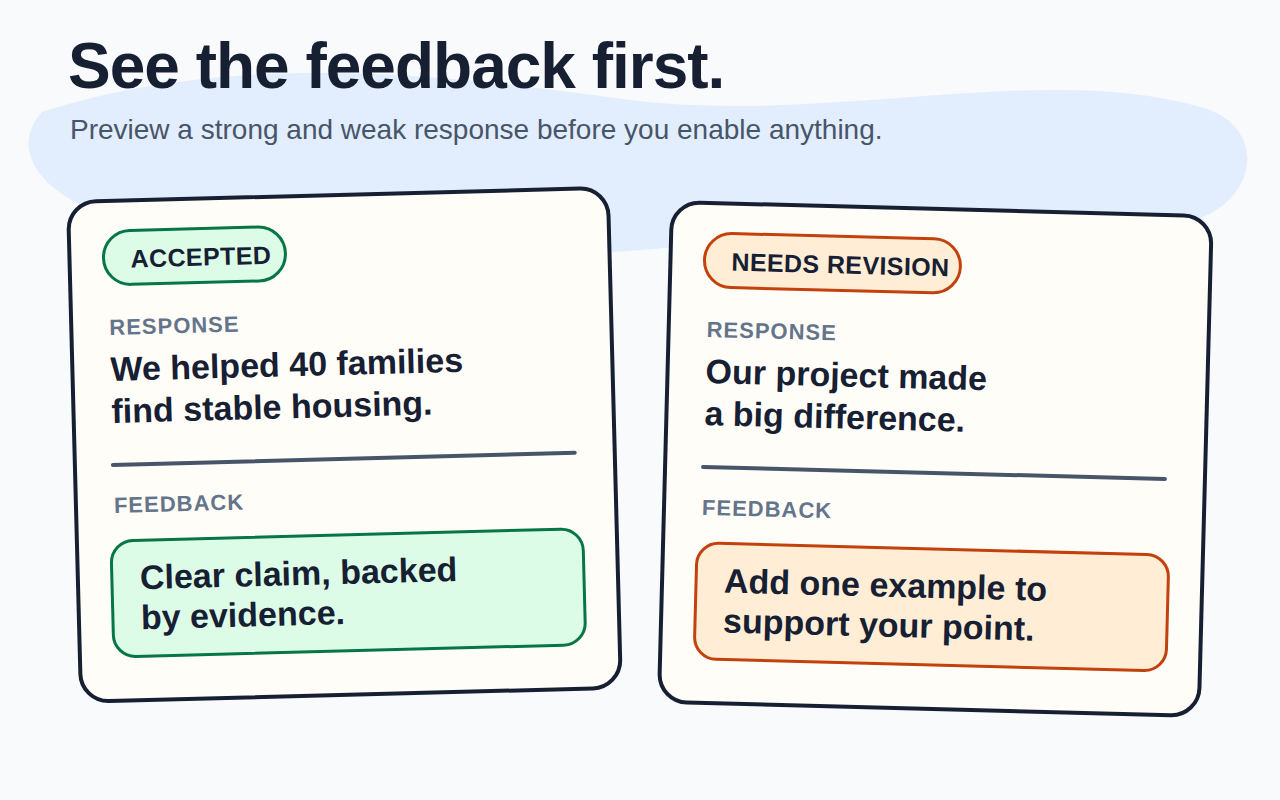
- Creates two form-specific simulated responses so you can judge the feedback before using real submissions.
- Prepares feedback as drafts for you to review before sending.
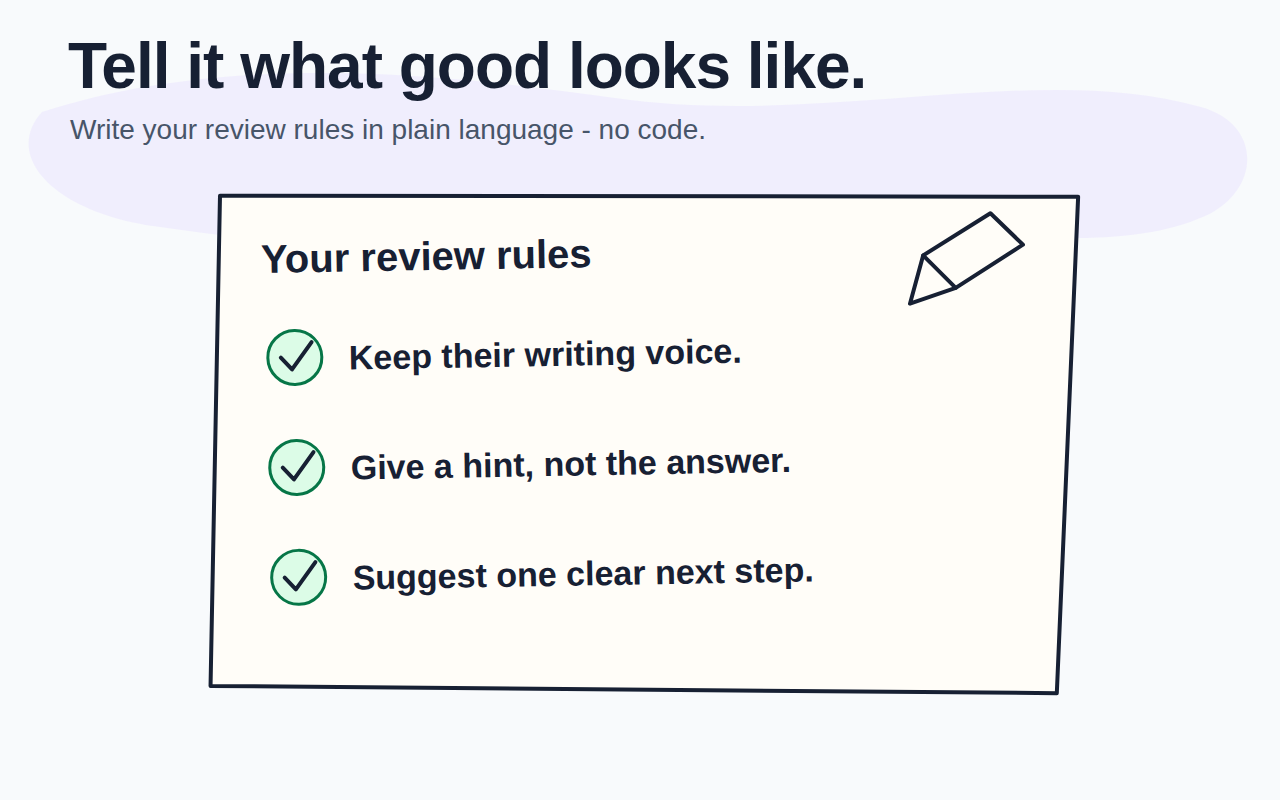
- Turns your corrections into reusable instructions for future responses.
- Can send feedback to a central inbox, the person who filled the form, or both.
- Can include a button that lets the responder edit an answer when a fix is needed.
- Lets you retry failures, process earlier responses, and export response and delivery status.
Start with two simulated examples
- Open the Google Form™ you want to use.
- Open Extensions, choose AI Response Feedback for Forms™, then select Start.
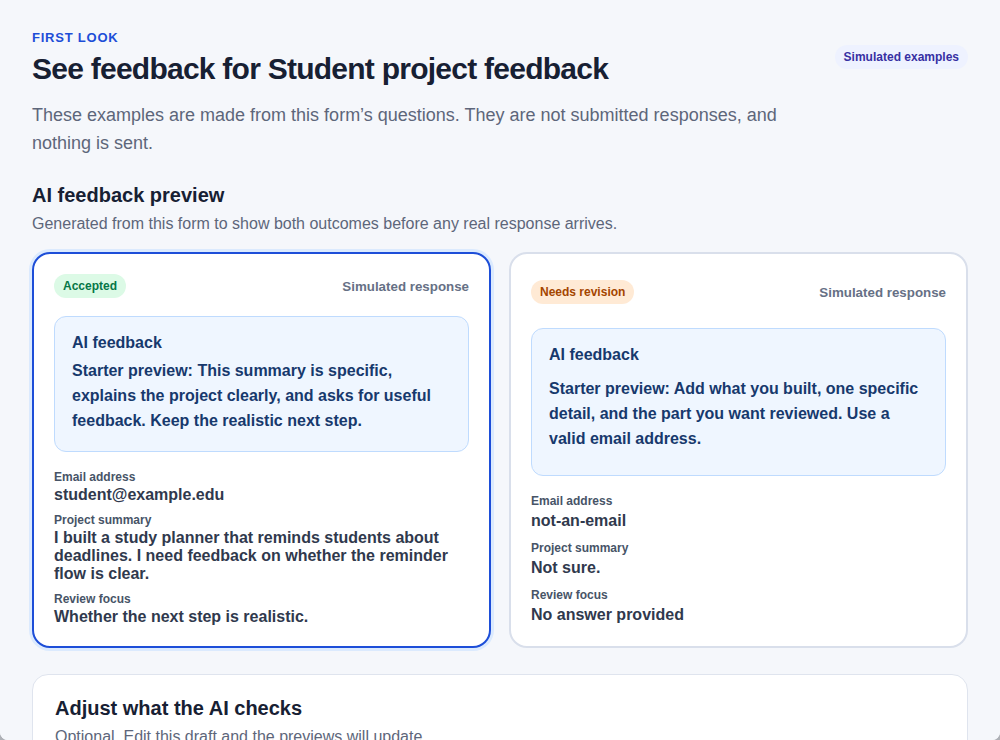
- Review the accepted example and the needs-revision example.
- Adjust what the AI should check until both examples match your standards.
The examples are created from your form questions. They are not submitted responses, they do not select or analyze existing submissions, and nothing is sent.
Choose “You review before sending”
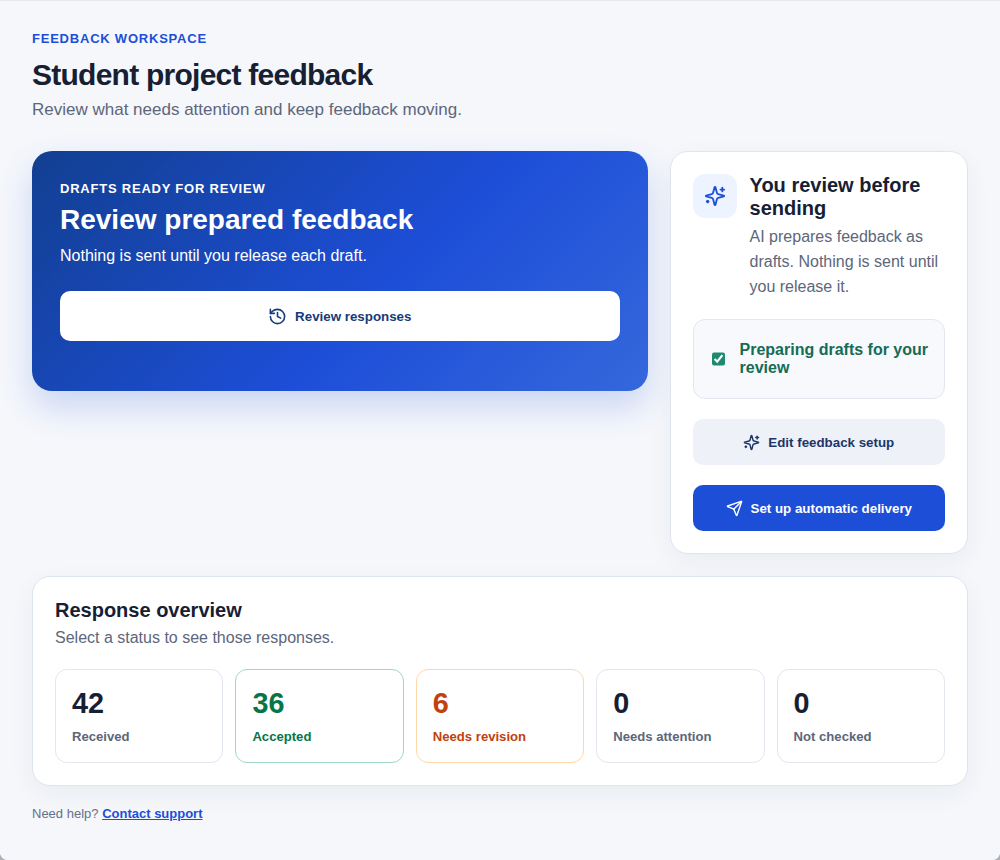
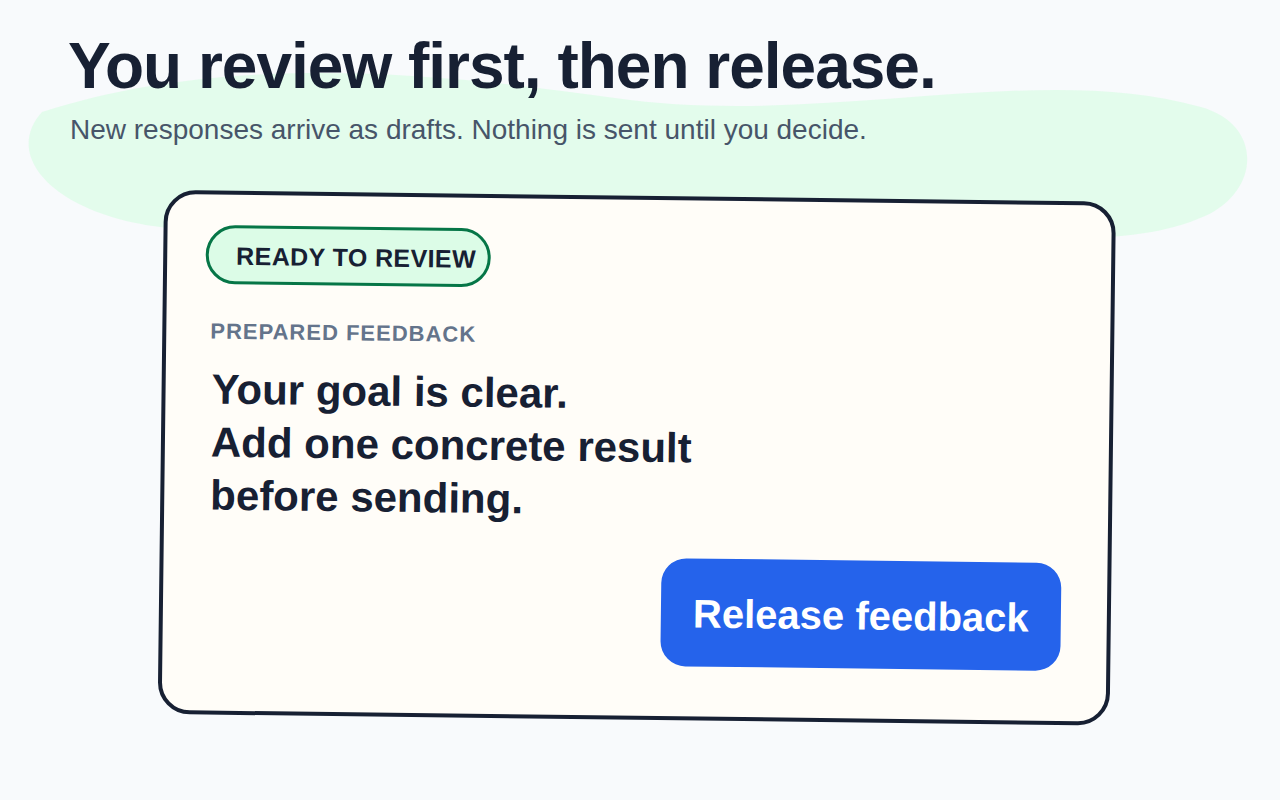
After both previews look right, choose You review before sending. The add-on starts checking new responses and saves the feedback as drafts. It does not send that feedback automatically.
If you choose a central inbox for review notices, it receives one notice when a new draft is ready. The notice does not contain or send the respondent’s feedback.
Review a response and improve future feedback
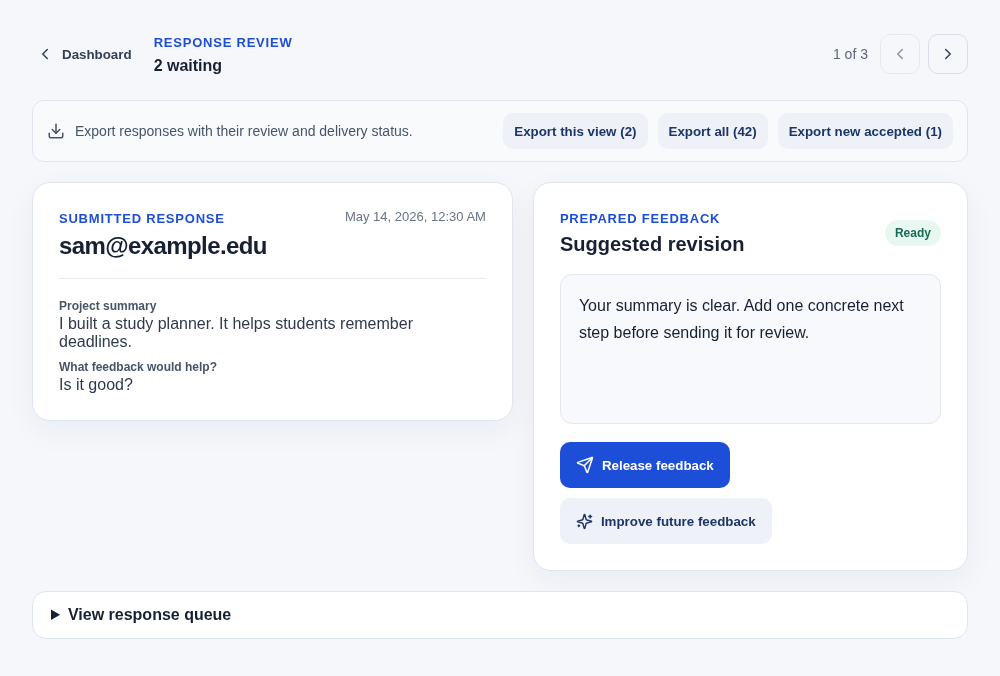
Open Review responses to see the submitted answers beside the prepared feedback.
- If the draft is right, release it after setting up where feedback should go.
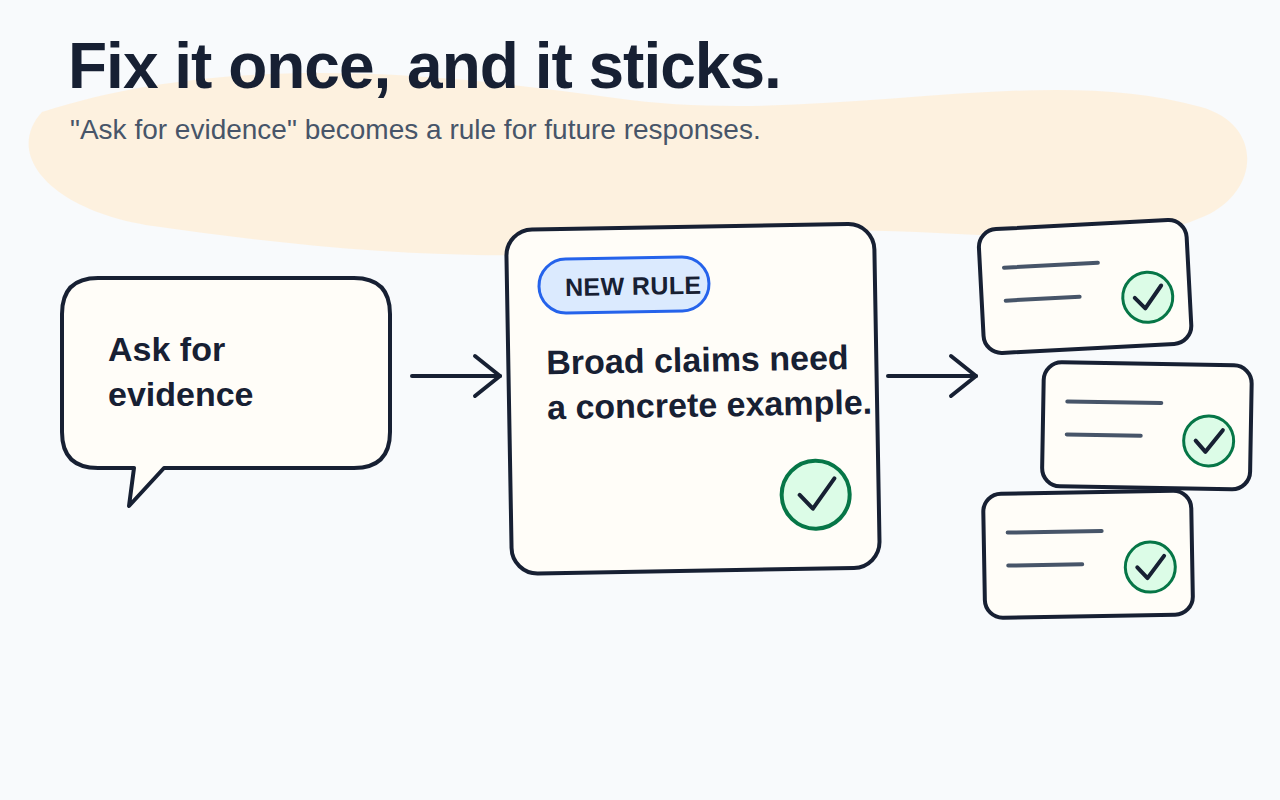
- If the draft misses something, choose Improve future feedback and explain what should change.
- Review the proposed rule, approve it, and let the add-on regenerate the affected draft.
- A draft made with older instructions cannot be released until it is refreshed.
Turn on automatic feedback when you trust the results
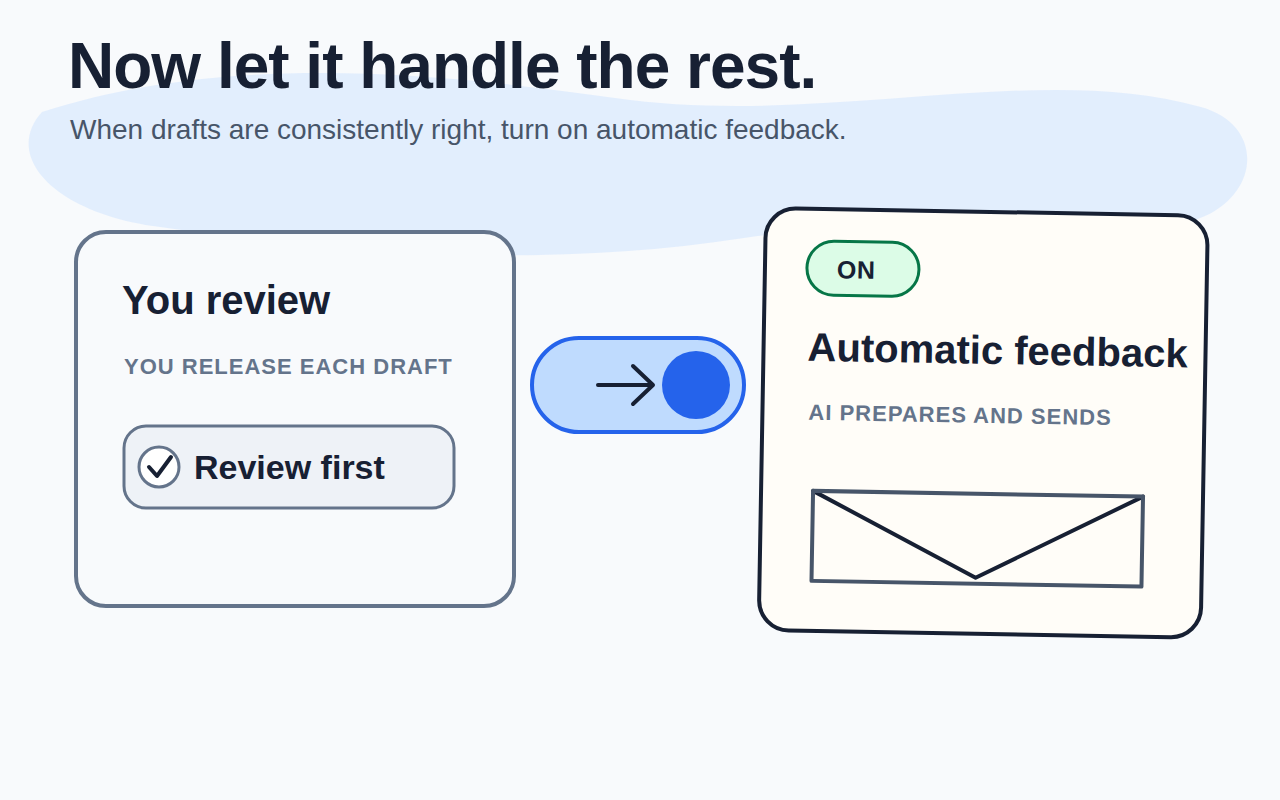
When prepared drafts consistently match what you would send, select Set up automatic delivery. Choose the recipients and save the setup. New responses will then be checked and sent without waiting for you.
- Central inbox: receives accepted responses and the details your team needs.
- Respondent: receives feedback at the email collected by Google Forms™ or an email question in the form.
- Both: sends respondent feedback and keeps the central inbox informed according to your choices.
Allow responders to edit answers
If feedback emails should include an edit button, the form must allow response editing. In Google Forms™, open Settings, then turn on the option that lets people edit after submitting.
Process earlier responses, retry failures, and export
- Check earlier responses applies the current instructions to responses that have not been checked.
- Retry keeps saved feedback when possible and retries only the unfinished work.
- Export this view, Export all, or Export new accepted downloads response and delivery status as CSV.
Pricing
The add-on is free for a limited period, both with and without a personal Gemini API Key. Usage credits will be introduced after we gather enough user feedback.
Get help
For support, contact support@darkaa.com.
Read the Privacy Policy and Terms of Service.